
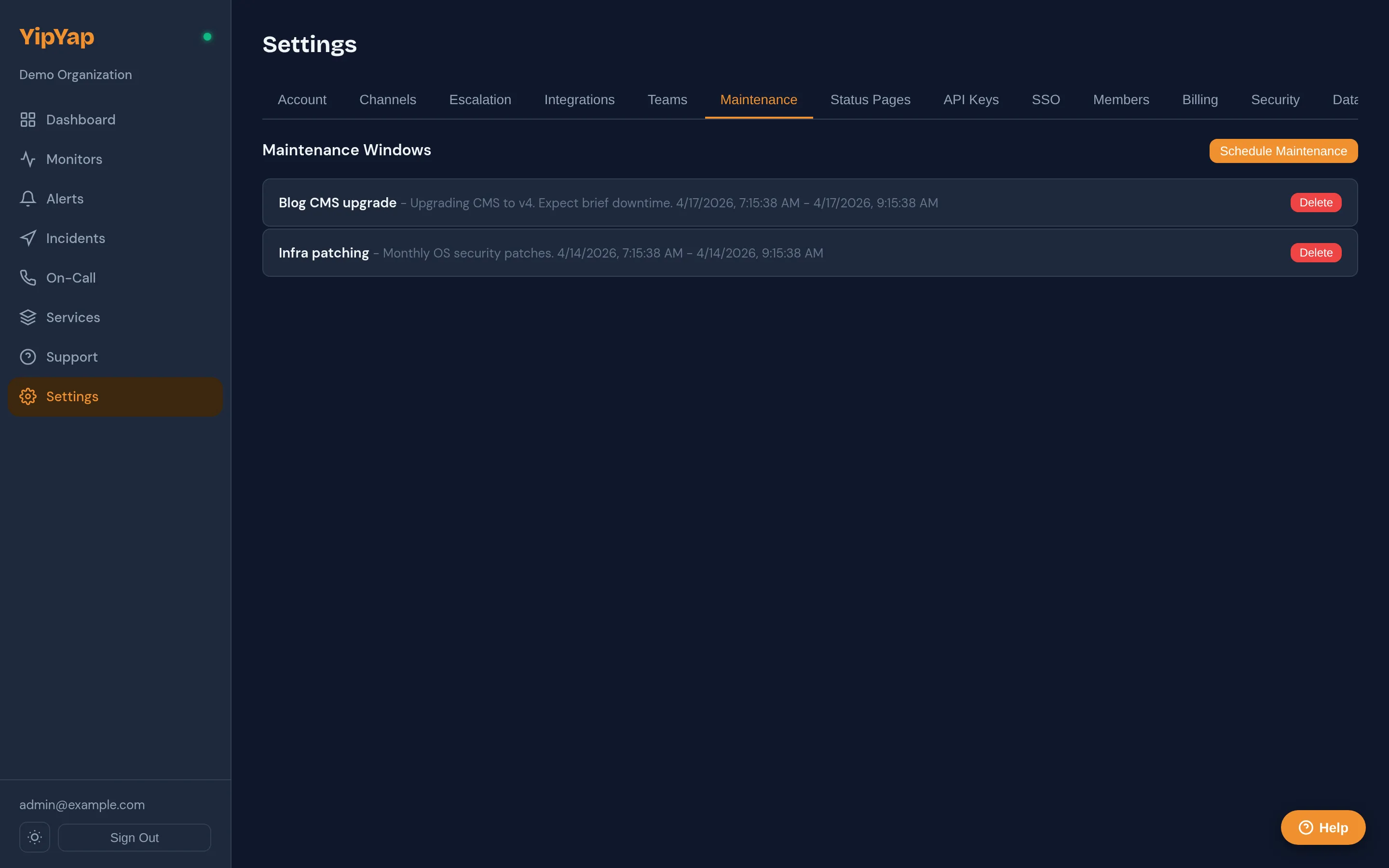
Maintenance Windows
A maintenance window is a scheduled time range during which selected monitors are expected to be unavailable or degraded. While the window is active, alerts from the targeted monitors are suppressed (your team isn’t paged for known work) and, crucially, the public status page shows a “Maintenance” badge instead of an “Outage” badge for the same monitors.
This is one of those small things that has an outsized effect on operator quality of life: every team that’s done a database migration without scheduling a window understands the value the first time they DO schedule one.
When to use a window vs other suppression mechanisms
Section titled “When to use a window vs other suppression mechanisms”YipYap has three different ways to keep a monitor quiet, and they’re not interchangeable:
| Mechanism | Checks run? | Alerts fire internally? | Public page badge | When to use |
|---|---|---|---|---|
| Maintenance window | Yes | No | ”Maintenance” | Planned, time-boxed work where you DO want to know if something other than the planned event breaks (you’ll see post-window). |
| Mute | Yes | Yes | Normal (Up/Down) | You want the timeline data but don’t want pages right now (e.g., a noisy alert is being investigated and you’ll re-enable once the root cause is fixed). |
| Pause | No | No | ”Paused” (grey) | The service is genuinely off (decommissioned, in cold storage, not relevant to track right now). |
Maintenance is the right answer for “we’re upgrading the database from 02:00 to 03:00 UTC.” Pause is the right answer for “the EU region is being shut down permanently.” Mute is the right answer for “we’re investigating this flap and want quiet for the next hour without losing the data trail.”
- Settings → Maintenance → New Window.
- Name is internal-facing and operator-readable. (“Stripe webhook redeploy”, “DB read-replica failover.”)
- Description (optional) is the customer-facing text shown on the status page when the window is public. Plain text, no markdown.
- Targets: pick monitors, monitor groups, or label-selector queries. See Targeting below.
- Start / End in UTC or your selected timezone. The window applies to monitor states between these times inclusive.
- Recurrence (optional): daily, weekly on selected days, or monthly on a fixed day-of-month.
- Public flag: when set, the window appears on the status page during its active period with the description visible to visitors. When unset, the window is internal-only (still suppresses alerts, but visitors see the monitor’s normal state).
- Save.
The window is scheduled but not active until its start time arrives. You can edit the start, end, or description right up until that moment; once a window is active, you can shorten the end time or cancel it but not extend it backwards.
Targeting
Section titled “Targeting”A window can target any combination of:
- One or more monitors directly. The monitor IDs are pinned at create time.
- Monitor groups. Every monitor currently in the group at the moment a check fires gets the suppression. Adding a monitor to the group during the window picks it up automatically.
- Label selectors. A map of
{key: value}pairs; every monitor whoselabelsmap matches all pairs is targeted. Useful forenv: stagingorteam: platform.
Logical OR across the three target types: a monitor is in scope if it’s listed individually, OR a member of a listed group, OR matches a label selector. Within a label selector, all key/value pairs are AND-combined.
Most operators start with direct-monitor selection. As you build muscle memory, label selectors are typically the right tool for recurring windows (“every Sunday, all of env: staging”).
Recurrence
Section titled “Recurrence”Recurring windows save you from creating a new window before each weekly deploy:
| Pattern | Example |
|---|---|
| Daily | Every day at 02:00 UTC for 1 hour. |
| Weekly | Every Tuesday and Thursday at 09:00 PT for 30 minutes. Multiple days are AND-combined within a single rule. |
| Monthly | The 15th of every month at 04:00 UTC for 2 hours. |
Recurrence honours the timezone you set on the window. DST is handled correctly: a daily window at 02:00 America/Los_Angeles fires at 02:00 local time year-round, which means it shifts in UTC twice a year as expected. Recurring rules with a UTC timezone don’t shift.
Set an optional until to stop the recurrence (e.g., “every Tuesday until 2026-12-31”). Without an until, the rule recurs indefinitely; cancel by deleting the window.
Behaviour during a window
Section titled “Behaviour during a window”While a maintenance window is active and a targeted monitor’s check would normally have fired an alert:
- The monitor’s check still runs and the result is recorded in history. You’ll see the failed checks in the dashboard timeline; nothing is hidden.
- Escalation policies do NOT execute. No notifications are sent.
- The console dashboard renders a “Maintenance” badge on the monitor, with the window name and end time on hover.
- The public status page shows a “Maintenance” badge instead of “Outage” if the window is
public. If not public, the monitor renders normally (which is usually fine, since internal-only windows are typically used for monitors that aren’t on a public page anyway). - Existing in-flight alerts are NOT auto-resolved when a window starts. Resolve them manually if they’re now expected. Inversely, when a window ends and the monitor is still down, a fresh alert fires immediately.
Maintenance vs incident on the public page
Section titled “Maintenance vs incident on the public page”These two interact in a way operators sometimes miss:
- Maintenance window only (no incident): the targeted monitors show “Maintenance”; the page banner is unaffected by the window.
- Active incident with severity =
maintenance: the page banner uses the maintenance label; affected monitors show whatever the window says (or normal status if no window is active). - Maintenance window AND a non-maintenance incident: rare, but it happens. Something went wrong DURING the window. The window’s “Maintenance” badge stays on the targeted monitors; the incident publishes on the page banner with whatever severity you chose.
Use a window for planned work that’s expected to disrupt; use an incident with severity maintenance for notifying customers about scheduled downtime in narrative form (e.g., a multi-hour migration with several status updates).
Cancelling and editing
Section titled “Cancelling and editing”Maintenance windows are stored records, not tags applied at runtime:
- Edit a future window: change name, description, targets, schedule. Until the start time, anything is editable.
- Cancel an upcoming window: delete it. It never starts.
- Shorten an active window: change the end time to “now” (or a near-future time). Suppression stops at the new end.
- Cancel an active window: same as above; set end to now.
- Edit a recurring rule: changes apply to future occurrences only. Past occurrences are immutable history.
There is no “skip this occurrence” toggle on a recurring rule. To skip one occurrence, edit the rule’s recurrence to exclude that day, or create a one-off override.
Org-wide auto-mute
Section titled “Org-wide auto-mute”A separate setting under Settings → Organization → Monitor defaults controls whether new monitors start in a muted state. This is independent of maintenance windows; it’s about onboarding. Teams that build many monitors during a migration sometimes flip auto-mute on temporarily so they can validate configuration before notifications fire.
This is mute-by-default, not maintenance-by-default. It does not affect existing monitors.
API access
Section titled “API access”All the operations above are also available via the Maintenance Windows API, useful for terraform-style infra-as-code or for bridges that schedule windows from your deploy pipeline.
Operational tips
Section titled “Operational tips”- Schedule windows from your deploy pipeline. Most teams find that scheduling a 30-minute window automatically when a deploy starts (and cancelling it on green) eliminates the false-outage class entirely. The API makes this a 5-line script.
- Be specific in the description. “DB upgrade” is unhelpful to customers; “Upgrading the user database to fix a known query-plan regression. Expect intermittent 5xx on the /users endpoint for up to 10 minutes” reads as competence.
- Keep windows tight. A window that’s wider than necessary erodes the signal: operators stop trusting that “Maintenance” actually means something. If you finish early, shorten the end time.
- Don’t suppress monitors that aren’t actually affected. If you’re upgrading the database, suppress database monitors, not the entire app’s API monitors. The latter hides a real outage if the upgrade goes worse than expected.
- Set timezone explicitly. A recurring “Tuesday at 09:00” with no timezone is ambiguous to anyone reading it later. Pin to America/Los_Angeles or UTC.
Related reference
Section titled “Related reference”- Maintenance Windows API: programmatic management.
- Status Pages → Maintenance display: how the public page renders windows.
- Monitors → Custom States: when standard up/down/degraded isn’t enough.