
SSO / OIDC
YipYap supports single sign-on (SSO) via the OpenID Connect (OIDC) protocol. This lets your team sign in with your existing identity provider instead of managing separate credentials.
Setup Guide
Section titled “Setup Guide”- In your identity provider (Okta, Google Workspace, Entra ID, etc.), create a new OIDC application.
- Set the application’s redirect URI to
https://console.yipyap.run/auth/oidc/callback. - Copy the Client ID, Client Secret, and Issuer URL from your identity provider.
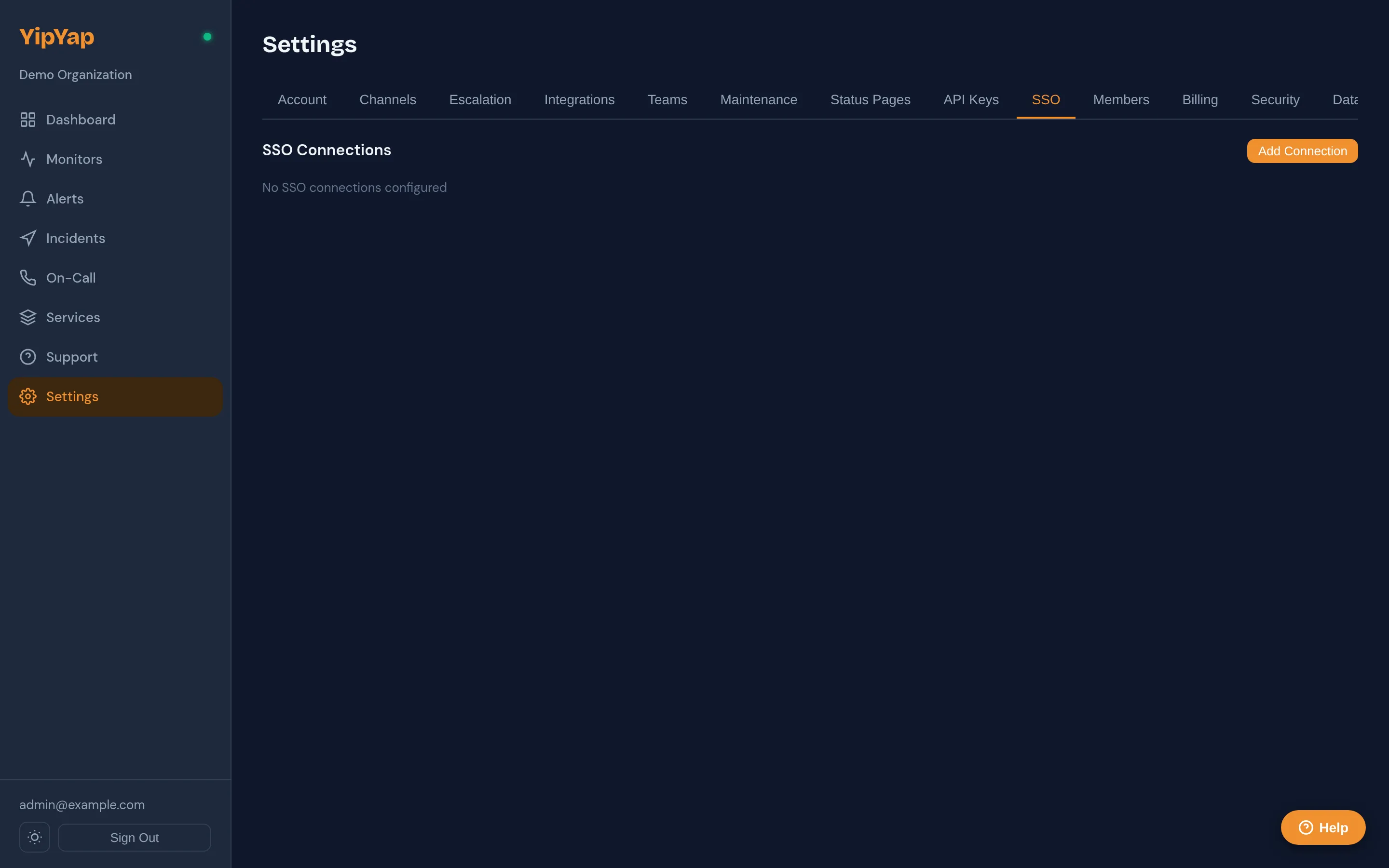
- In YipYap, navigate to Settings > Security > SSO and click Configure OIDC.
- Paste the Client ID, Client Secret, and Issuer URL into the form.
- Click Save and test the connection by signing out and signing back in via SSO.
- Optionally, enable Enforce SSO to require all members to authenticate through the OIDC provider.
Supported Providers
Section titled “Supported Providers”Any OIDC-compliant identity provider works with YipYap, including:
- Google Workspace
- Microsoft Entra ID (Azure AD)
- Okta
- Auth0
- Keycloak
- Authentik
- Zitadel
Configuration
Section titled “Configuration”- Navigate to Settings > Security > SSO.
- Click Configure OIDC.
- Enter the following values from your identity provider:
| Field | Description |
|---|---|
| Issuer URL | The OIDC discovery URL (e.g. https://accounts.google.com). |
| Client ID | The OAuth client ID assigned by your IdP. |
| Client Secret | The OAuth client secret. |
- Copy the Callback URL shown in YipYap and register it in your identity provider’s allowed redirect URIs.
- Click Save.
Callback URL
Section titled “Callback URL”The callback URL follows this pattern:
https://console.yipyap.run/auth/oidc/callbackAdd this URL to your identity provider’s list of authorized redirect URIs.
Attribute Mapping
Section titled “Attribute Mapping”YipYap maps the following OIDC claims to user attributes:
| OIDC Claim | YipYap Attribute |
|---|---|
email | User email |
name | Display name |
sub | External user ID |
If your provider uses non-standard claim names, you can configure custom attribute mappings in the advanced settings.
Enforcing SSO
Section titled “Enforcing SSO”Once configured, you can enforce SSO for your organization. When enforced:
- All members must sign in through the OIDC provider.
- Password-based login is disabled for the organization.
- New members are automatically provisioned on first login.
Troubleshooting
Section titled “Troubleshooting”- Redirect mismatch: Verify that the callback URL in your IdP exactly matches the one shown in YipYap.
- Claims missing: Ensure your IdP is configured to include the
emailandnameclaims in the ID token. - Login loop: Clear browser cookies and try again. Check that the issuer URL is correct and accessible.